
Latest News

Follow the latest news on OpenShot Video Editor!


,

Today marks an important day in the life of OpenShot Video Editor... the day we became a serious video editor. I'm talking about frame by frame animation, composited on top of multiple layers of video and audio! You can now "easily" edit every single pixel of your video (if you so desire). As you can tell, I'm very excited about this feature.

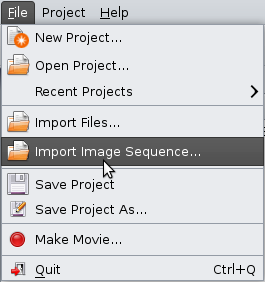
To start with, we have 2 new menu options: Import Image Sequence and Convert to Image Sequence. Choose any video clip in your project, right click on the clip and select "Convert to Image Sequence", and it will create a folder with every single frame of that video clip (i.e. frame_0001.png, frame_0002.png, etc...).


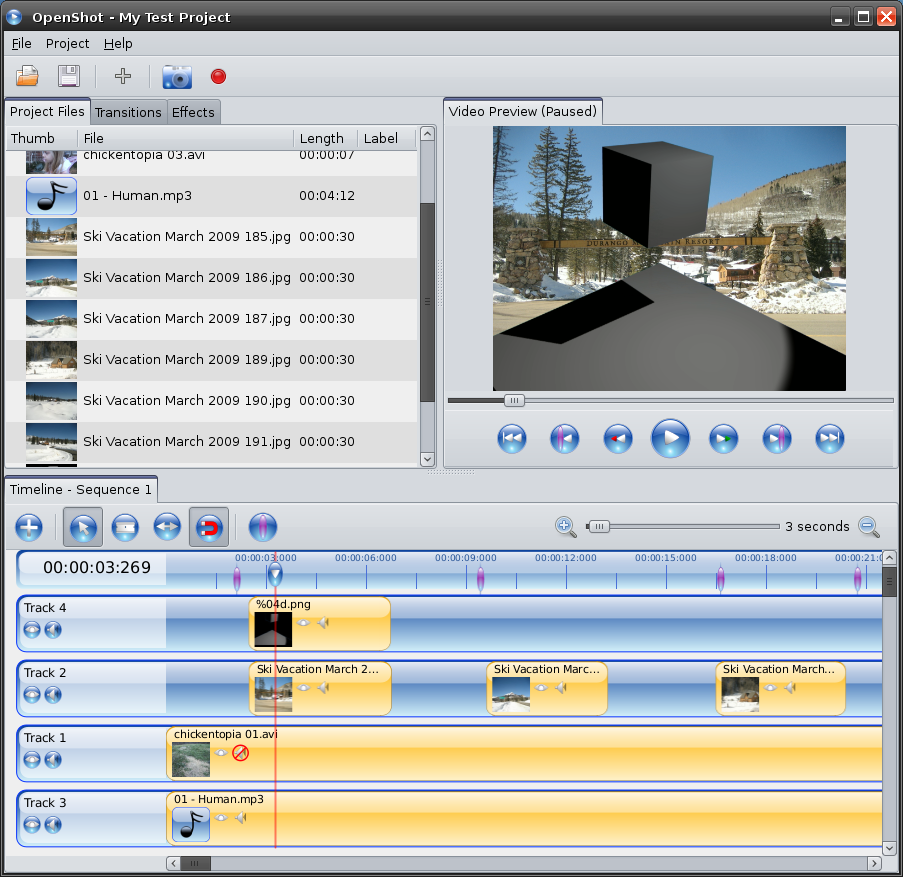
Once you have an Image Sequence in your project, you can move it around as if it was a regular video clip, trim it, arrange it, and preview it. But most importantly, it maintains the alpha channel of the PNG images, so any transparency shows through to the next track (i.e. next layer of video). Here is an example, showing a sequence of transparent PNG images on top another video clip. The background video clip shows through the transparent areas of the image sequence.

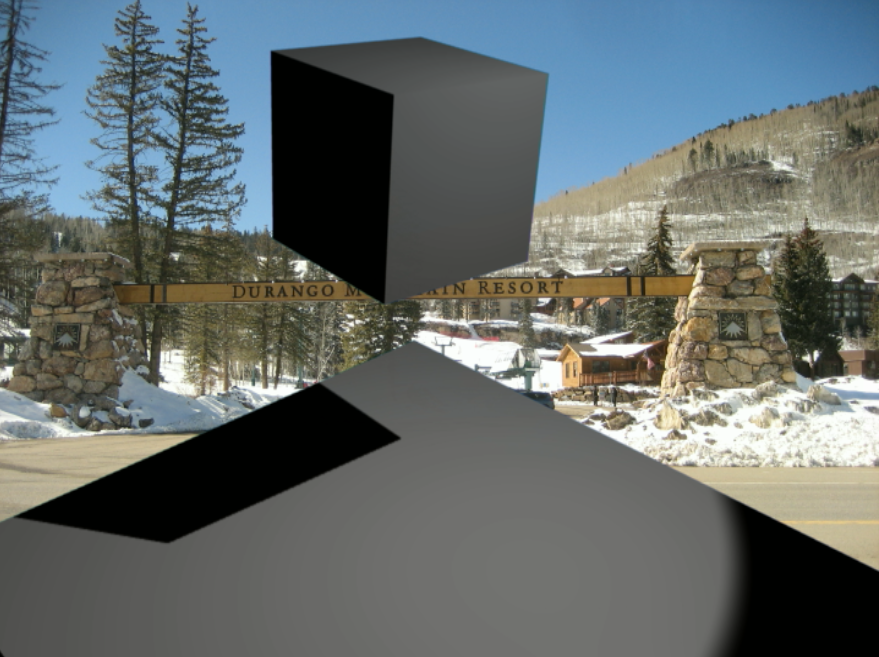
Here is a close-up of the composited image sequence and video clip. Notice how smoothly they are composited... no jaggies anywhere.

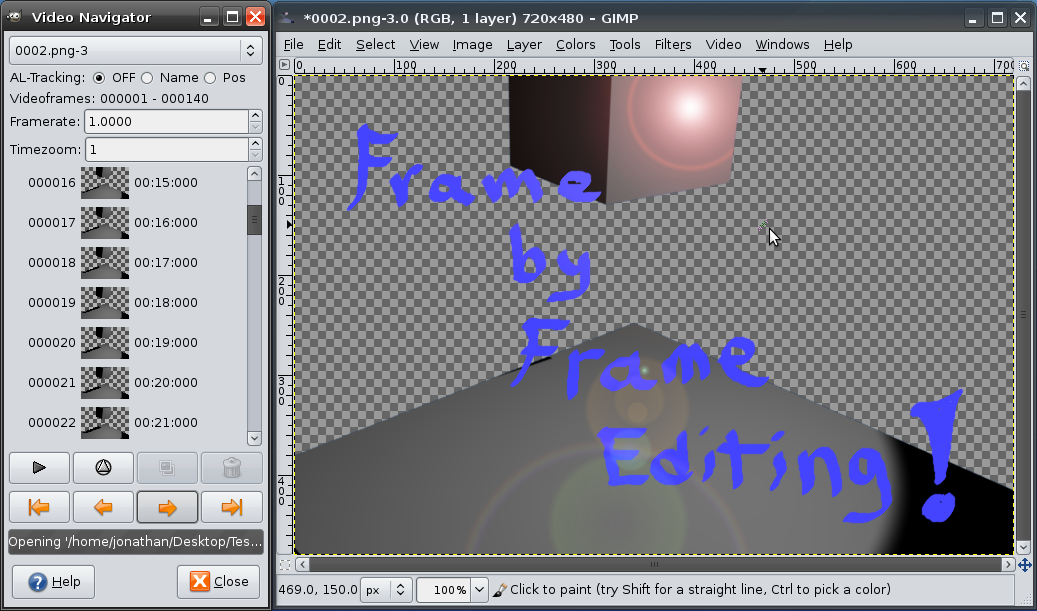
You can use your favorite photo editing program (in my case, Gimp with the optional Gimp Animation Package - GAP installed) to edit each frame of your video clip. GAP allows you to quickly save your changes and move to the next or previous image in the sequence. It even allows you to key frame and apply settings across many images at once.

In summary, these new features allow you to quickly convert video clips into images, enabling you to modify the images, and easily arrange them on your timeline with all your regular video and audio clips.

Once you combine OpenShot with other leading packages, such as Blender, Gimp, and Inkscape, this is becoming a great platform for video editing, compositing, and special effects.

Share to Facebook Share to Twitter Share to MySpace Stumble It Share to Reddit Share to Delicious More...

11 comments

  1. Anonymous  

    I would like to see a possiblity to export to mng or yuv420p.

  2. Anonymous  

    And because it can import image sequences, could it be possible to export to them too?

  3. Jonathan Thomas  

    Yes, I probably didn't make this clear in my post, but with a single click, you can convert any video clip to a sequence of images (which effectively exports each frame to a folder on your hard-drive), and continue to work with it in OpenShot as if it was a regular old video clip. So, yes, it does export the image sequence.

    Thanks for the comment!

  4. Anonymous  

    But can it export the WHOLE project? It would be very cool to be able to export the project to an image sequence and also the audio to (for example) wav.

  5. Anonymous  

    hey I'm following your project and very excited. thank you for all your hard work. I'm impressed with this compositing option.

    One question, will it be able to/can you add this function? In a lot of high end cameras you can choose between interlaced and progressive footage. Can you please include a frame blend option to either interlace, or deinterlace? also some cameras shoot in 23.97 (specifically Panasonic ones) frames per second to achieve a fuller 24 fps look. In usual NLE you have to remove "pull down", is there a removing "pull down" option?

    thanks again

  6. Jonathan Thomas  

    I am planning on adding an option to export the entire project as an image sequence. You will also be able to export just the audio of the entire project. So, in effect, you could produce both the audio and images of the entire project. I just haven't got that far yet. =)

  7. Jonathan Thomas  

    As far as interlaced and progressive, and frame rate (i.e., 23.97, 24, 29.97), all of this is handled by the MLT profile you select (or in OpenShot's case: the project type you select for your video).

    For example, if you select a project type that is 23.97 fps and progressive, then all video you add to your time-line will be normalized to these settings.

    I understand that converting between 23.97 and 29.97 is an easier process and looses less information than converting between 24 and 29.97, but as far as "removing pulldown", I'm not exactly sure what that refers to. Any links that explain why you would remove pulldown would be appreciated. FYI: I'm no expert on 24 fps video. =)

    Thanks for the comment!

  8. PhillC  

    Here's some info on removing "pull down":

    http://eugenia.gnomefiles.org/2007/07/13/canon-hv20-24p-pulldown

  9. Jonathan Thomas  

    PhillC, thanks for the link. I also found a great explanation of telecine, which goes into great detail (with illustrations) on "pulldown". I'm not sure if MLT has the ability to remove "pulldown" or not, but I will investigate and post my findings in the near future.

  10. 66666er  

    thanks for the link philic, yea it has to do with the 3rd and 5th frame and how it properly records true 24 fps progressive. thank you for listening jonathan. and I'm looking forward to using this.

  11. Bri  

    I have made several attempts to install and use openshot... I am pleased to say of all the platforms I tried, I finally got it working just great on linux mint 9. For now I have a triple boot using windows 7, ubuntu 9.4, and linux mint 9, but I may end up setting up a dedicated spare puter just for openshot and related packages once I get the hang of it. Thanks a million for your hard work

Post a Comment

Subscribe to: Post Comments (Atom)